When a PC is set as the DMZ host in a local area network, it is completely exposed to the public network, with all network ports open, allowing arbitrary two-way communication between the external network and the device. This setting is often used to resolve connection issues caused by port blocking for certain special applications, such as remote access to IP cameras or inability of database services to connect externally. If you are unsure about which specific ports need to be opened, enabling DMZ can serve as a temporary solution.
Common Use Case: Online Gaming
You might be able to log into a game server but can’t join parties or host matches because the game needs specific ports open. Enabling DMZ bypasses these restrictions by opening everything — often fixing connectivity issues without needing to manually forward dozens of ports.
How to Set Up DMZ on a WAVLINK Router
Before you begin: Assign a static IP to your PC , for example 192.168.10.100 — to avoid IP changes breaking the setup.Then follow the steps below:
1.Open your browser and go to http://wavlogin.link and Log in with your router password
2.Navigate to Advanced Setting> NAT Forwarding > DMZ,Check Enable DMZ
3.Enter your PC’s IP address 192.168.10.100 in the DMZ Host IP field
4.Click Save
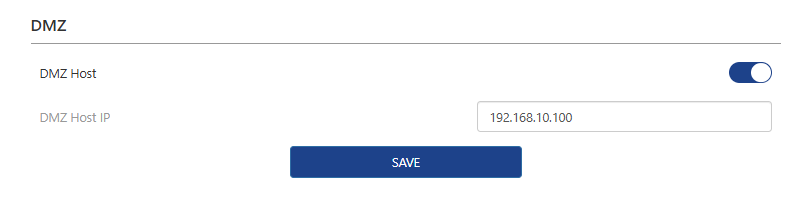
Your PC is now a DMZ host. Try launching your game again — the connection issue should be resolved.
⚠️Note: When DMZ is enabled, the DMZ host is totally exposed to the internet, which may bring some potential safety hazards. If DMZ is not in use, please disable it in time. For long-term stability, consider port forwarding specific ports instead.
