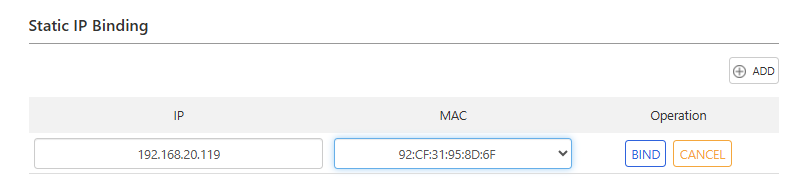
In most home networks, devices automatically receive dynamic IP addresses from the router’s DHCP server—a practical solution for everyday use. However, certain devices benefit greatly from consistent, unchanging IP addresses to ensure reliable connectivity and seamless access. Manually configuring static IPs on individual devices can be cumbersome, especially when changes are needed or conflicts arise. To alleviate these issues, many routers offer an Static IP Binding function, making it convenient to configure static IP addresses.
When Is a Static IP Necessary?
Similar to how a home or business address provides a physical location, an IP address provides a device's location on a network. Network devices access each other through IP addresses.
Since DHCP assigns addresses from IP address pool,and reassigns them upon lease expiration or disconnection, a device’s IP may change over time. This means that a device uses different IP addresses at different times, and other devices need to know the current IP address of this device to communicate with it.
For frequently accessed devices, using a fixed static IP address is more practical than using a dynamically changing IP address, because other devices can always know the IP address to find them.
Here are some examples of such devices:
- A computer configured as a file server or web server
- A computer that needs remote access and is away from home
- A network printer or a NAS drive shared by multiple family members
With a fixed IP, these devices remain reliably reachable at the same address,which makes administering andtroubleshooting the device easier
How Static IP Binding Works
Static IP Binding eliminates the hassle of manual static IP configuration by linking a device’s unique MAC address to a specific IP address within the router’s DHCP settings. When the device reconnects to the network, the router recognizes its MAC address and automatically assigns the same IP.
How to using Static IP Binding
1.Connect to the router ,then Visit http://wavlogin.link, and log into the router’s web management page.
2.Go to Advanced Setting > Network > Static IP Binding.
3.In the Static IP Binding section, click Add.
4.Select a currently connected device. Or you can manually enter the MAC address of your desired device and enter the IP address.
5.Click BIND to save the settings.